¶ Genesys Cloud Deployment Guide
¶ Creating a Genesys Cloud Token
InProd authenticates with Genesys Cloud via an OAuth client token which must be created within Genesys Cloud and the details saved within the InProd Environment page. This OAuth client enables secure, programmatic access to the Genesys Cloud APIs, which InProd requires to perform configuration synchronization tasks.
Log in to Genesys Cloud
1. Use an admin account to access the Genesys Cloud interface.
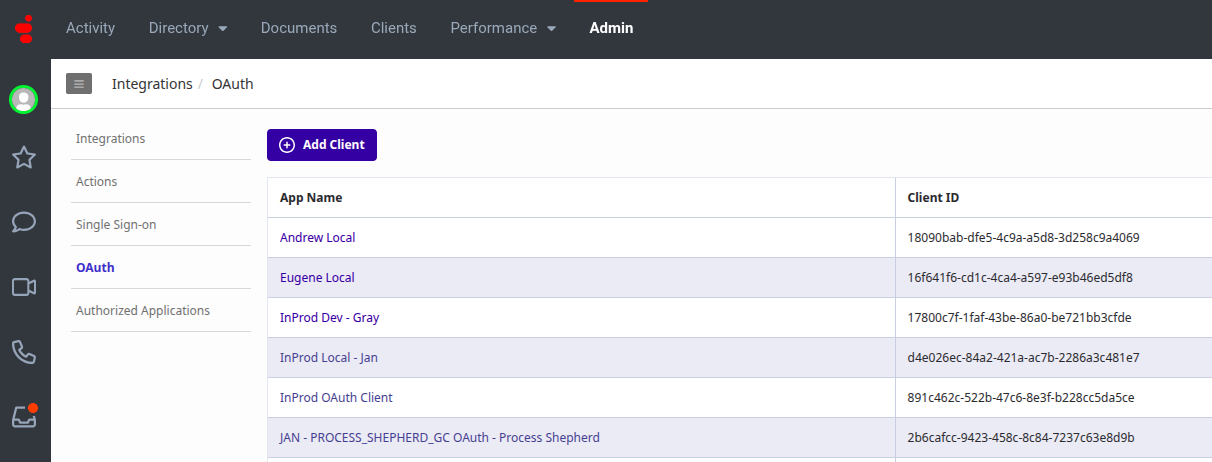
Go to OAuth Settings
1. Click Admin (gear icon).
2. Under Integrations, click OAuth.
3. Click Add Client.
Set Up the OAuth Client
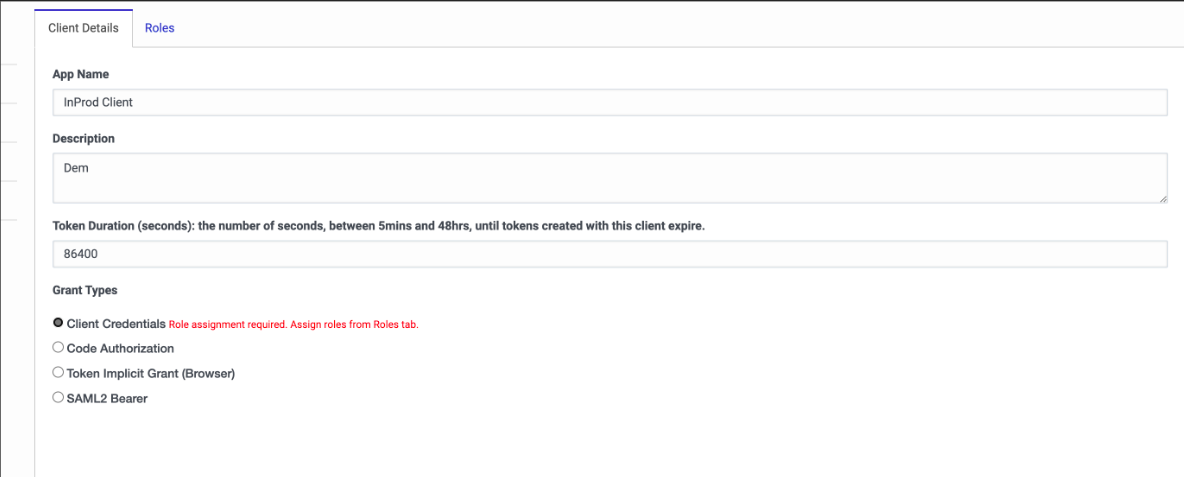
1. Enter a name for the client (e.g., Inprod Client).
2. Select Client Credentials as the grant type.
3. Click Save.
Assign a Role to the Client
1. Go back to Admin > People & Permissions > OAuth Clients.
2. Click on the newly created client.
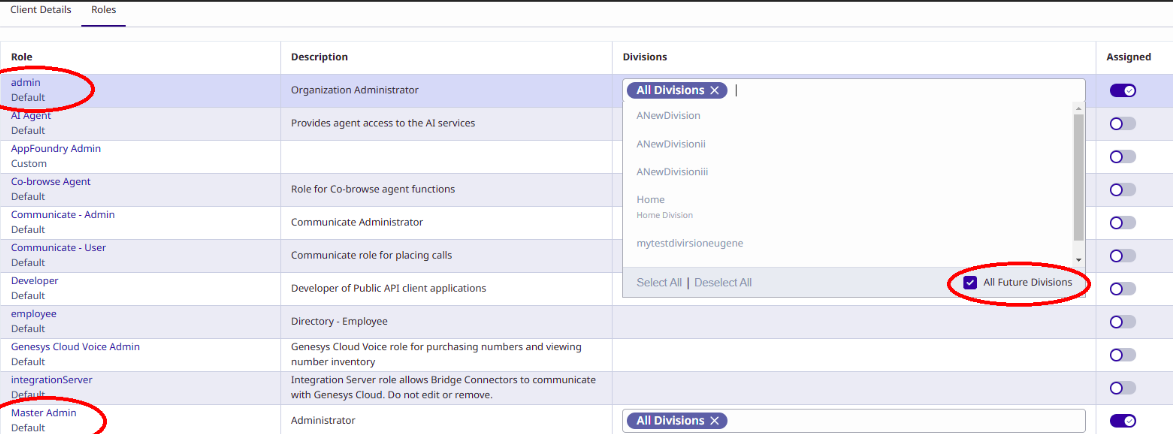
3. Click Assign Roles.
4. Select a role that includes the permissions needed for syncing (e.g., view users, conversations, recordings).
Set Role Access to All Future Divisions
1. While assigning the role, click Edit Divisions.
2. Select All future divisions.
3. If this option is missing, your own user account does not have “All future divisions” assigned in its admin role.
Save and Copy Credentials
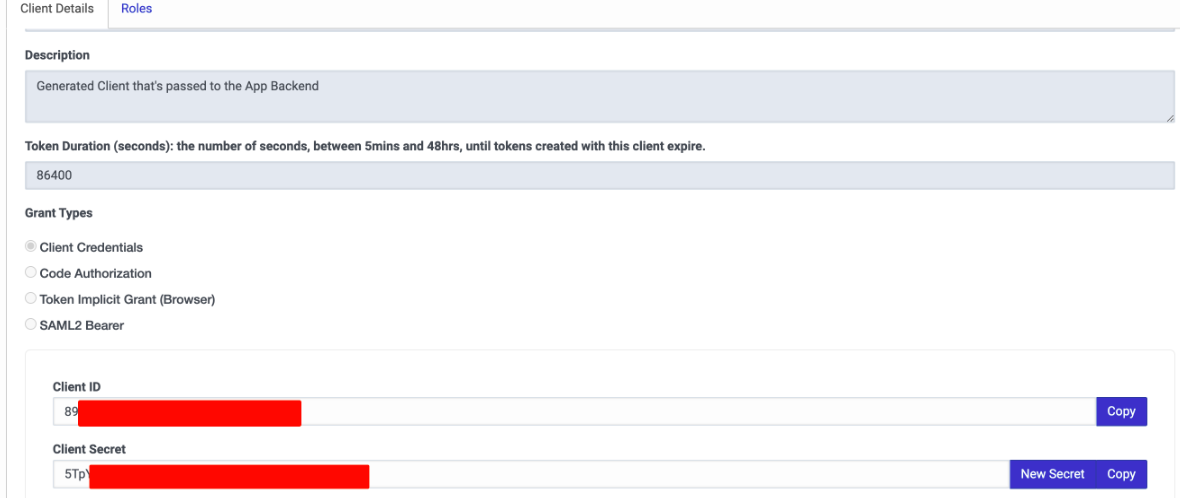
1. After saving, copy the Client ID and Client Secret.
2. Store them securely for use in setting up the environment in InProd.
¶ Creating a Genesys Cloud Environment to InProd
An Environment within InProd represents a single Genesys Cloud Org. If you have multiple Orgs, such as production and test then each one will be created as different Environments within InProd.
With the Genesys Cloud authentication token created the Environment can be created within InProd.
-
Sign in to the Inprod app using an admin account.
-
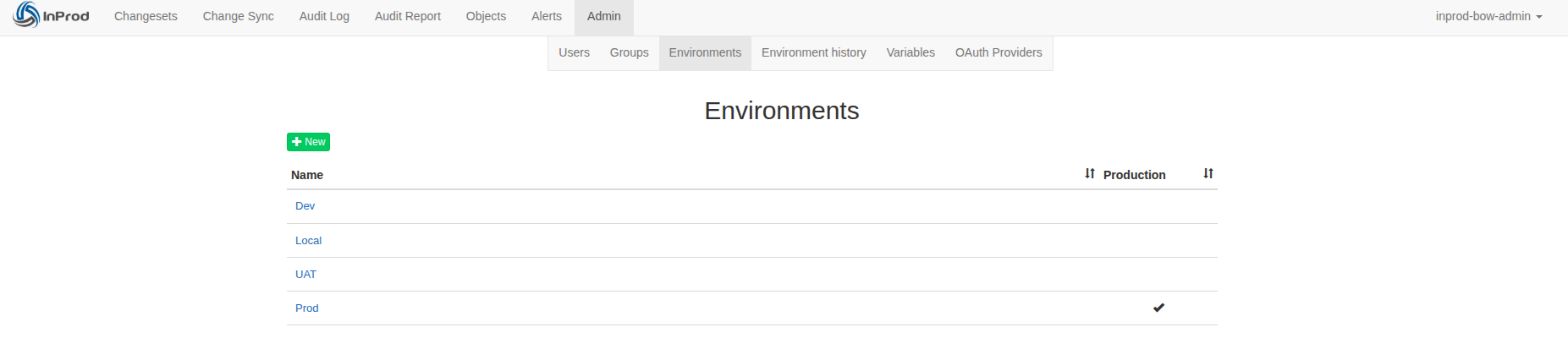
Navigate to Environments
- Go to Admin > Environments.
- On this page, you’ll see a list of all existing environments.
- You can also create a new environment from this page.
-
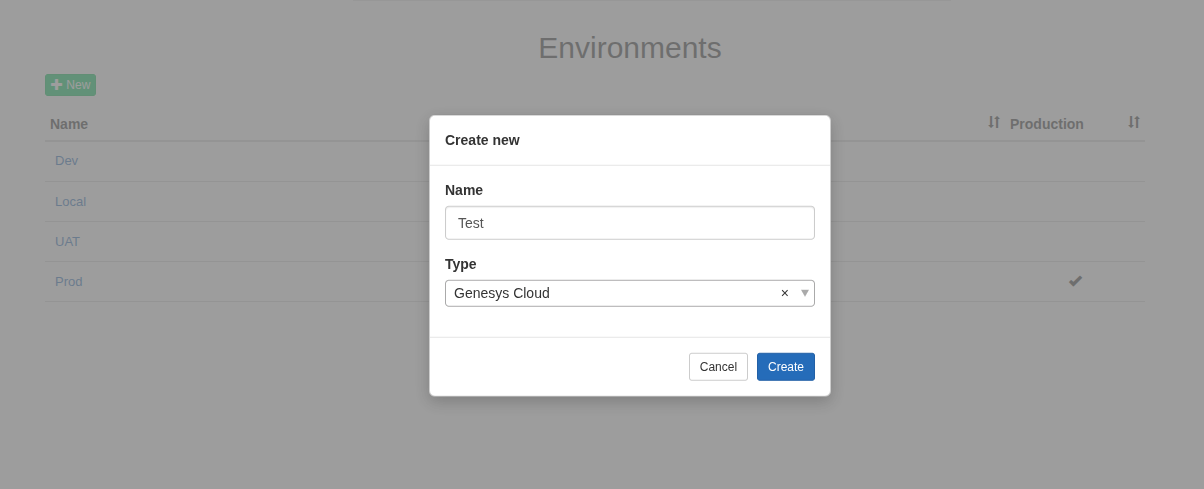
Create a New Environment
- Click +New.
- A modal window will appear prompting you to enter environment details:
- Name: Specify a name for the environment.
- Type: Select “Genesys Cloud” from the dropdown.
- Click Create to save and create the environment.
-
Post-Creation Redirect
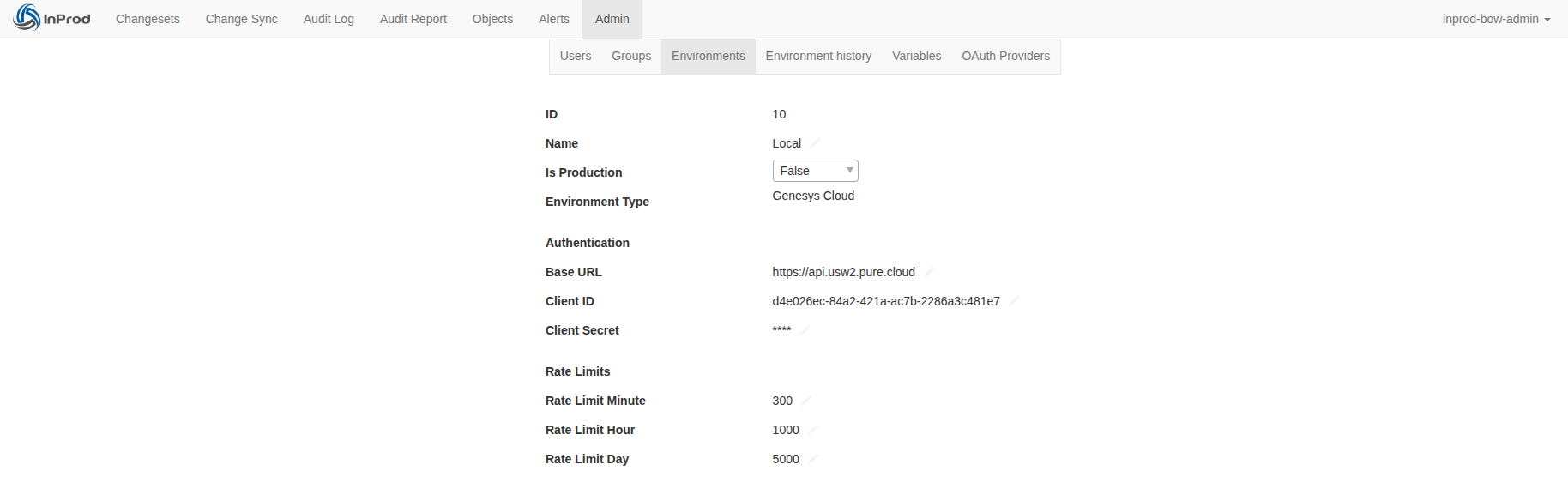
After creation, you will be redirected to the newly created environment record.
Within the environment page, you can update the following fields:
| Field | Description |
|---|---|
| ID | This is the numerical Id for the environment which can be used within JS code block logic. |
| Name | A short descriptive name for the environment to help identify it. |
| Is Production | Set to True or False depending on the nature of the environment. This is for limiting user permission. |
| Base URL | The base URL of your Genesys Cloud region (e.g., https://api.usw2.pure.cloud). |
| Client ID | Client ID from your previously created Genesys OAuth record. |
| Client Secret | Client Secret from the same OAuth record. |
| Rate Limit Minute | Maximum requests per minute, set to 0 to disable. Suggested value is 250 |
| Rate Limit Hour | Maximum requests per hour, set to 0 to disable. |
| Rate Limit Day | Maximum requests per day, set to 0 to disable. Suggested value is 60,000 |
Rate Limits control how many requests are sent to Genesys Cloud over a give time period. Set any rate limit field to
0to disable it. Only configure one rate limit type (Day, Hour, or Minute). If multiple are set, the priority is: Day > Hour > Minute
¶ Change Detection Interval
Genesys Cloud does not support push notification of changes, so InProd needs to poll the Genesys Cloud API to detect changes. This section of the Environment page configures the rate in which this polling will occur. Adjusting the polling frequency is the best way to control the API usage of InProd
The default rate is defined by the entry "All objects". Individual objects can have a specific entry to increase or decrease the polling frequency.
The polling frequency is configured as a CRON entry in POSIX format, see the following examples
- Hour 22, Minute 30 -> Run once a day at 10:30 PM
- Hour 9,12,17 Minute 0 -> Run 3 times a day 9:00 AM, 12:00 PM and 5:00 PM
- Hour * Minute 45 -> Runs every hour (23 times a day) on the 45th minute (ie 1:45 AM)
- Hour 1/3 Minute 5 -> Runs every hour (23 times a day) on the 45th minute (ie 1:45 AM)
¶ Change Retention
The change retention controls how long configuration history is retained for. This is used to control the amount of data that is consumed by the configuration history. The most recent change details are always retained.
¶ Ignore Changes
Configuration changes that are made to individual parameters on a model can be ignored. This prevents changes being detected on parameters that receive daily system updates. The default values should not be removed.
¶ Finalizing Setup
After making changes, you can:
-
Validate Configuration
Click Validate Genesys Cloud to ensure your authentication and settings are correct. -
Start Syncing
Click Import of Genesys to begin syncing data from Genesys Cloud to Inprod. -
Delete Environment
If needed, click Delete Environment to remove this environment permanently.
¶ Support Portal
Need help? Contact Inprod support:
Email: help@inprod.io
Web: https://help.inprod.io
InProd is a registered trademark of InProd Solutions Pty Ltd. Genesys Cloud and the Genesys logo are registered trademarks of Genesys Cloud Services, Inc. (Genesys), formerly Genesys Telecommunications Laboratories, Inc