A Changeset is a collection of changes packaged into a reusable, executable unit. Changesets allow configuration objects to be deployed from one environment to another, or replicated within the same environment.
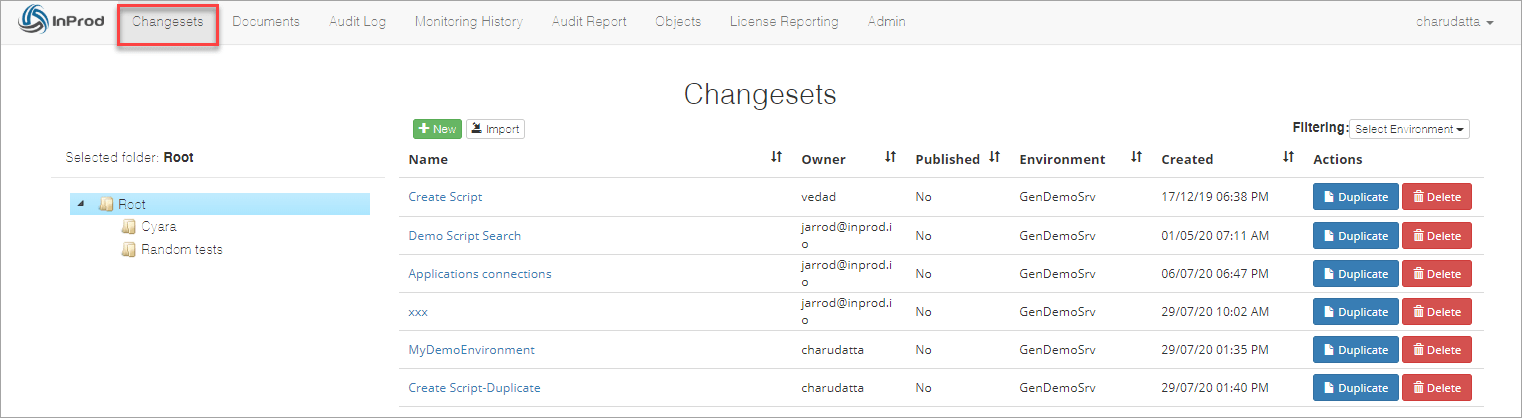
Using Changesets to deploy configuration changes speeds up the deployment process and reduces the risk of human error.
InProd Changesets are not limited to Genesys Cloud configuration changes — several action types are available to support complex deployments.
¶ Key points
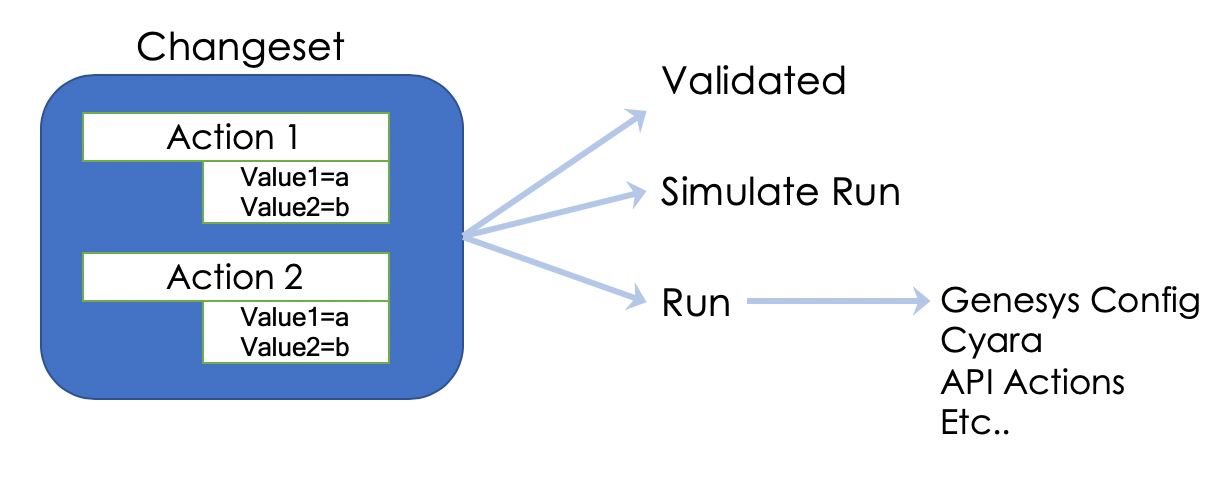
- One or more Actions that perform tasks in a defined order
- Each Action can optionally contain parameters
- Ability to Validate & Simulate Run to ensure success
¶ Creating a new Changeset
To create a new Changeset
- On the toolbar, click Changesets to open the Changesets page.
- In the left pane, select the folder to which you want to create the changeset.
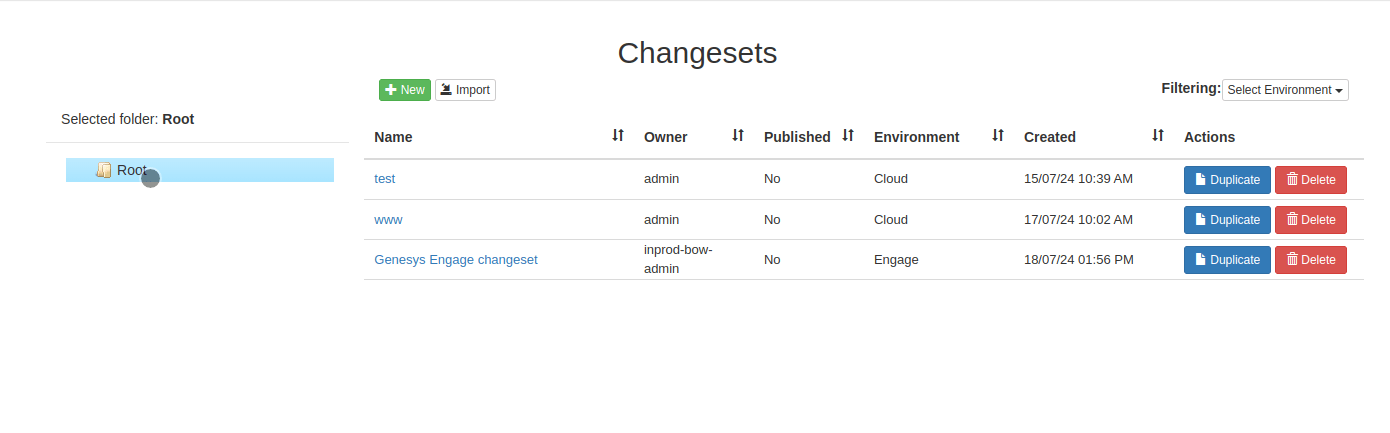
- On the Changesets page, click the New button.
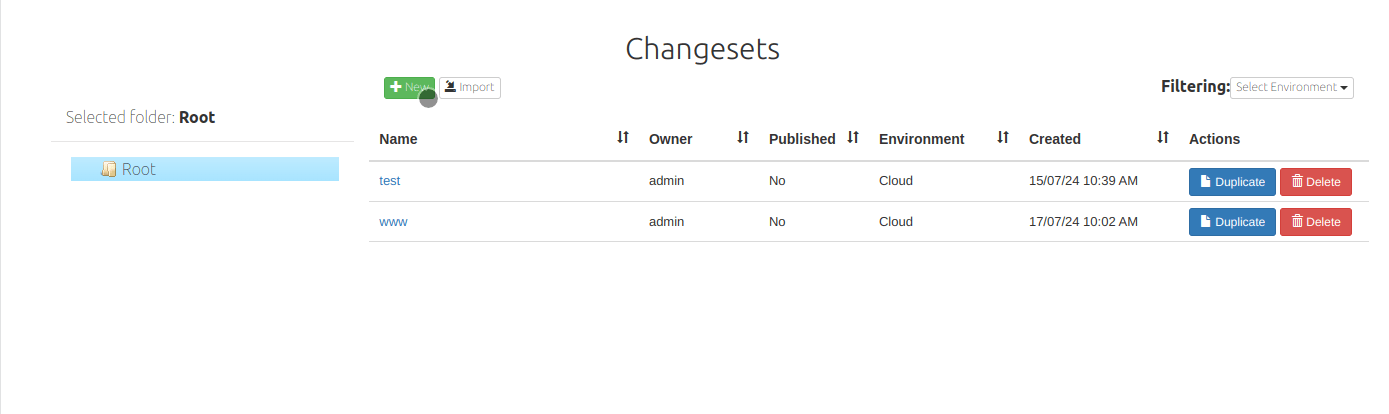
-
In the Create Changeset dialog box, enter appropriate values in the following fields:
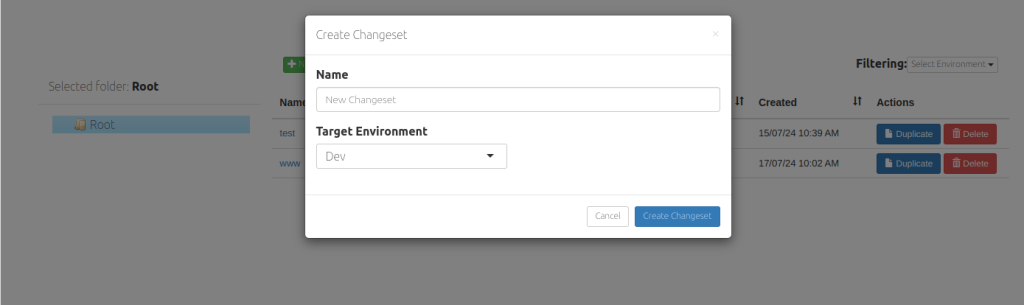
- Name: Enter the descriptive name that can easily identify the Changeset.
- Target Environment: From the drop-down list select the environment where you want to deploy the changes.
-
Click Create Changeset.
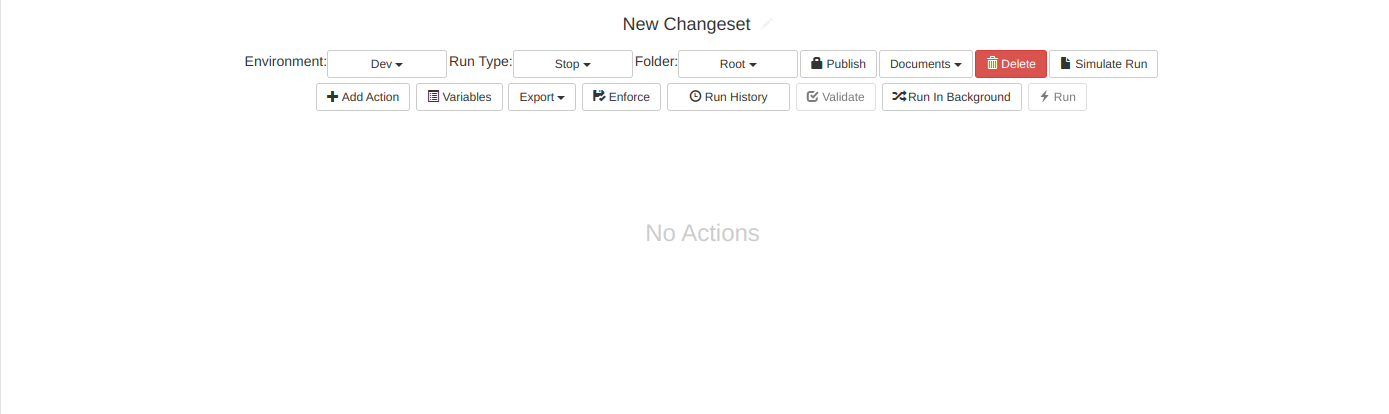
After the successful creation of the new Changeset, the Changeset page appears with options to add required actions.
¶ Importing Changesets
InProd provides an option to import changesets that you have created or edited outside of your instance of InProd.
The process of generating more complex changes from an existing changeset can be simplified by exporting the existing changeset, editing it within a text editor and reimporting back into InProd.
The import and export feature is also used to commit changesets into a Version Control System (VCS) such as GIT. Changesets can be directly executed from an exported file using Ansible, Puppet, or directly calling the InProd API.
Note:
- You can import changeset from the files that are in JSON and YAML formats.
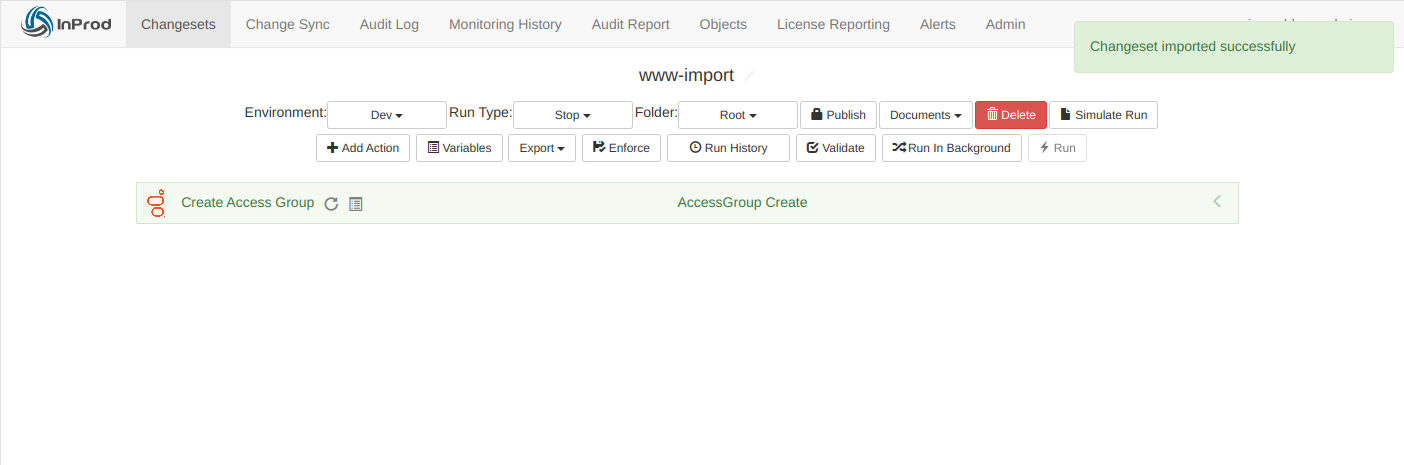
- All imported changesets are stored in the 'Root' folder, irrespective of the currently selected folder.
To import the changeset
- On the toolbar, click Changesets to open the Changesets page.
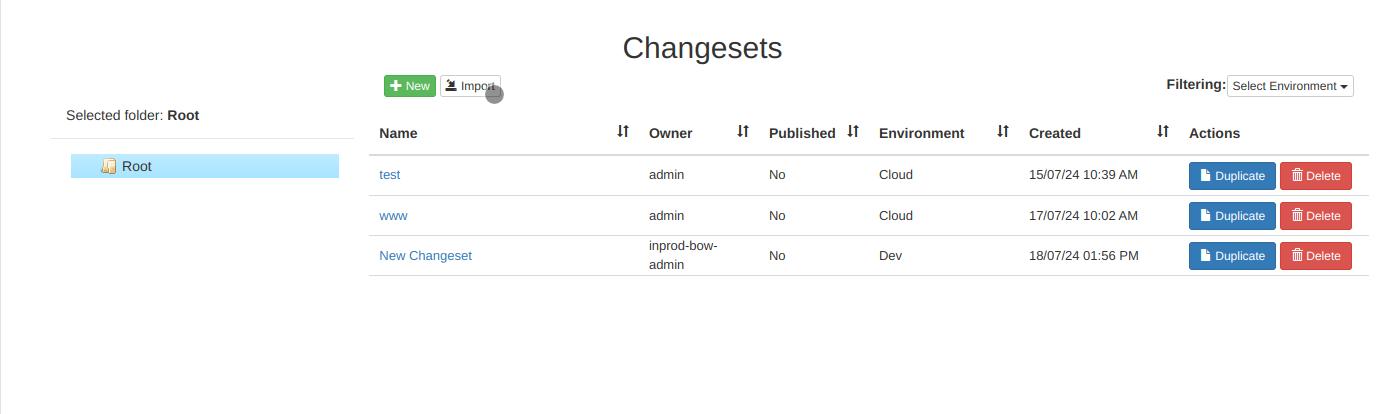
- On the Changesets page, click the Import button.
- In the Create Changeset dialog box, enter appropriate values in the following fields:
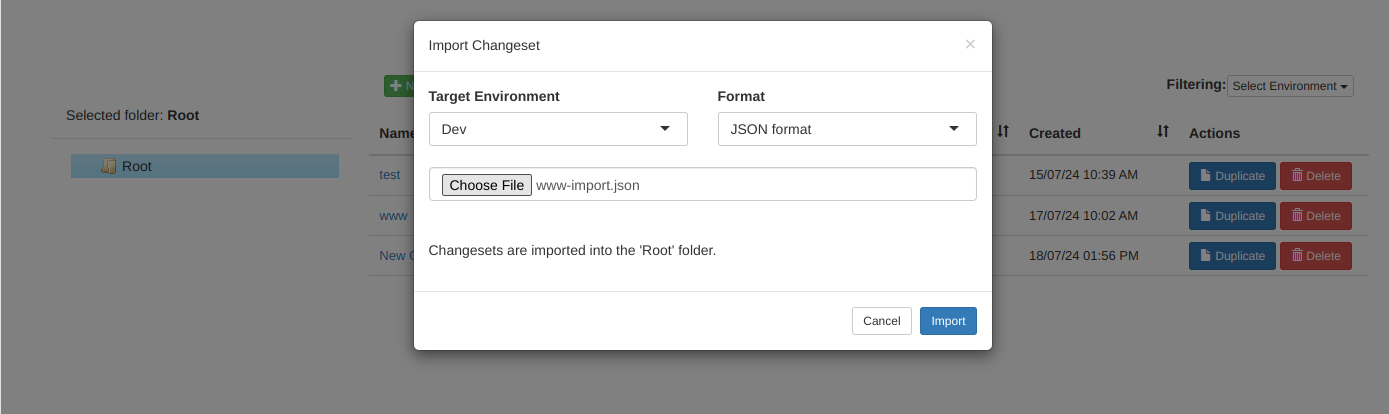
- Target Environment: From the drop-down list, select the environment where you want to deploy the changes. This value overrides the target environment specified in the imported file.
- Format: From the drop-down list, select the file format of the changeset file.
- Choose File: Select the file from which you want to import changesets. This option becomes visible only when you select the format.
- Click Import.
After successful creation of the new Changeset, the Changeset page appears with options to add required actions. Note that the changeset will always be imported into the root folder.
¶ Exporting Changesets
Changesets can be exported to file in a JSON or YAML format. It is always recommended to validate a changeset before exporting it to ensure that it is valid.
Exporting changesets is useful for Ansible and Puppet integration where it is often checked into a Version Control System, such as GIT.
To export the changeset
- On the toolbar, click Changesets to open the Changesets page.
- On the Changesets page, click the changeset name that you want to export.
- On the Changeset page, click Export and select the format to export the changeset.
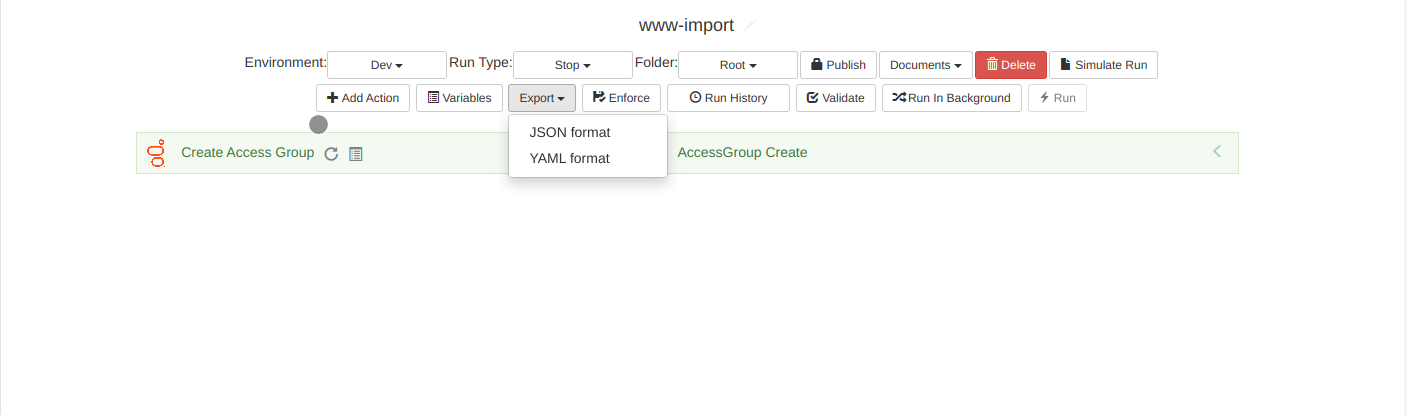
InProd downloads a file in the selected format.
¶ Duplicating a Changeset
Often it is considerably faster to develop a new Changeset by using an existing similar Changeset as a starting point. To support this, the ability to duplicate Changesets was added.
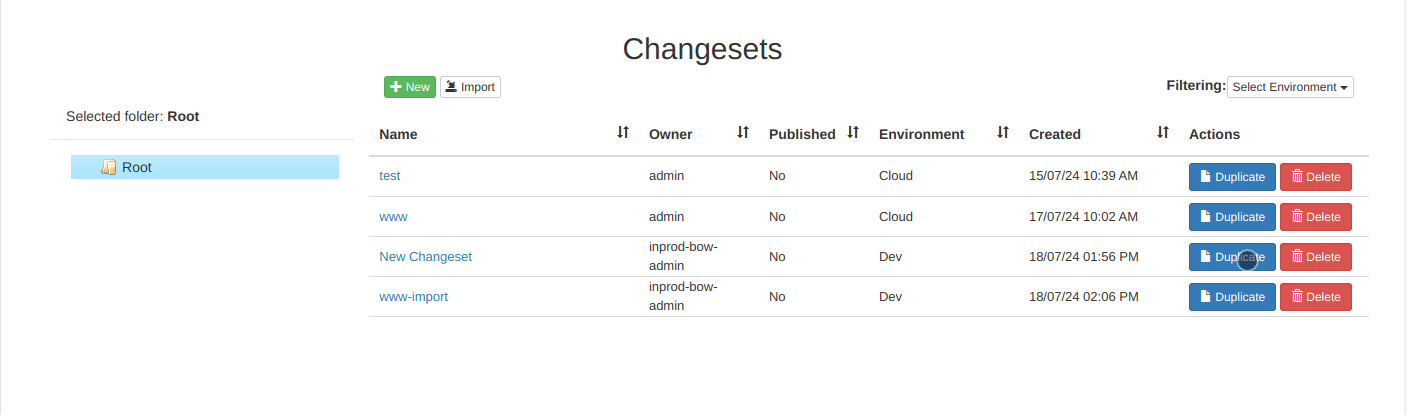
In the Actions column, simply click the Duplicate button corresponding to the changeset that you want to duplicate.
¶ Deleting a Changeset
If a specific Changeset is no longer required, you can delete it.
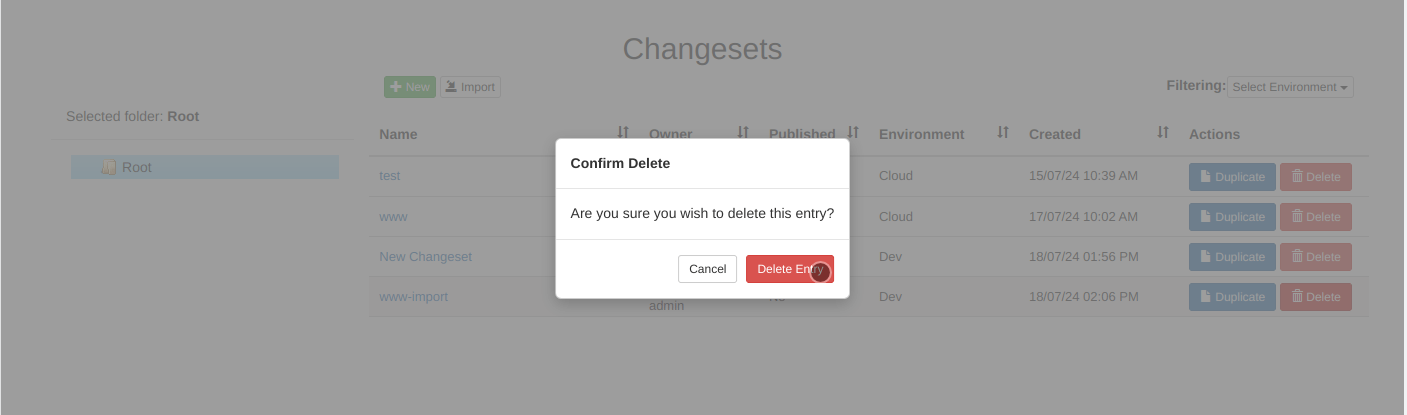
In the Actions column, click the Delete button corresponding to the Changeset that you want to delete.
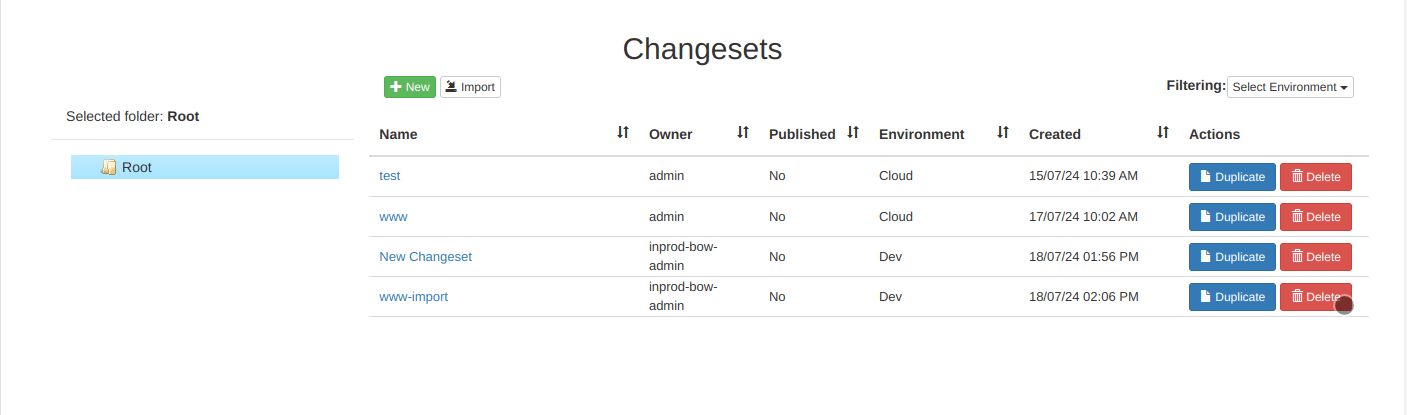
In the Confirmation message dialog box, click Delete Entry to confirm deleting the Changeset.
¶ Changeset Validation
InProd has an advanced rules engine to check whether the Changeset is valid or not.
Validation is required to ensure that all dependent objects exist and they are configured correctly. The relationship between Genesys Cloud configuration objects is complex and the rules engine understands this.
You cannot execute the Changeset unless it is validated. This ensures high confidence that the change is valid before it is applied and that all dependent objects are in the desired state. This also helps in reducing mistakes that occur during design time.
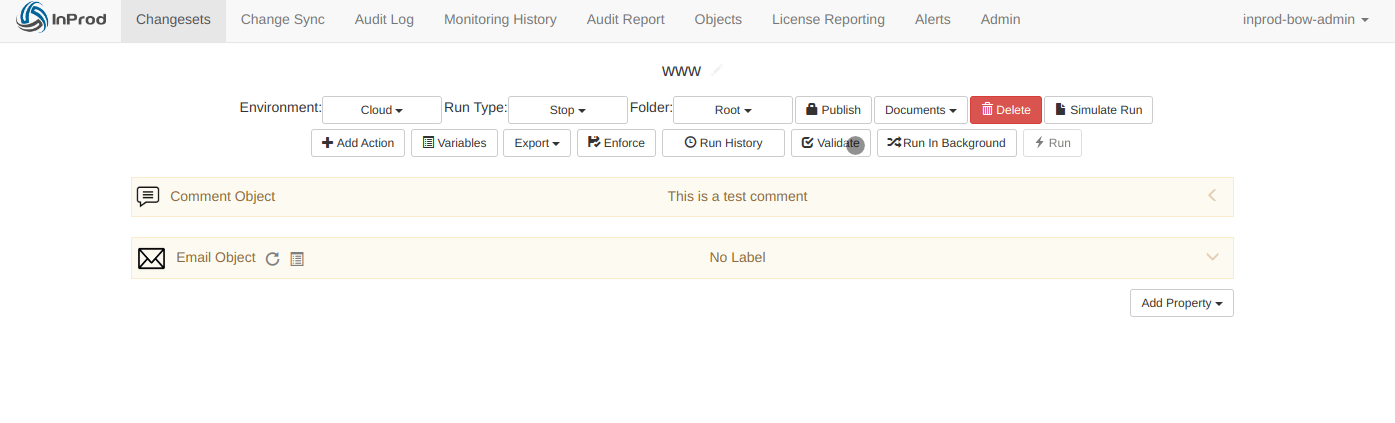
- On the Changeset page, click the Validate button.
- If there are any errors, InProd displays the appropriate validation error along with the error count on the action panel.
- Click the error count button to view the error details.
The error details panel opens with information about each error and knowing how to fix the errors.
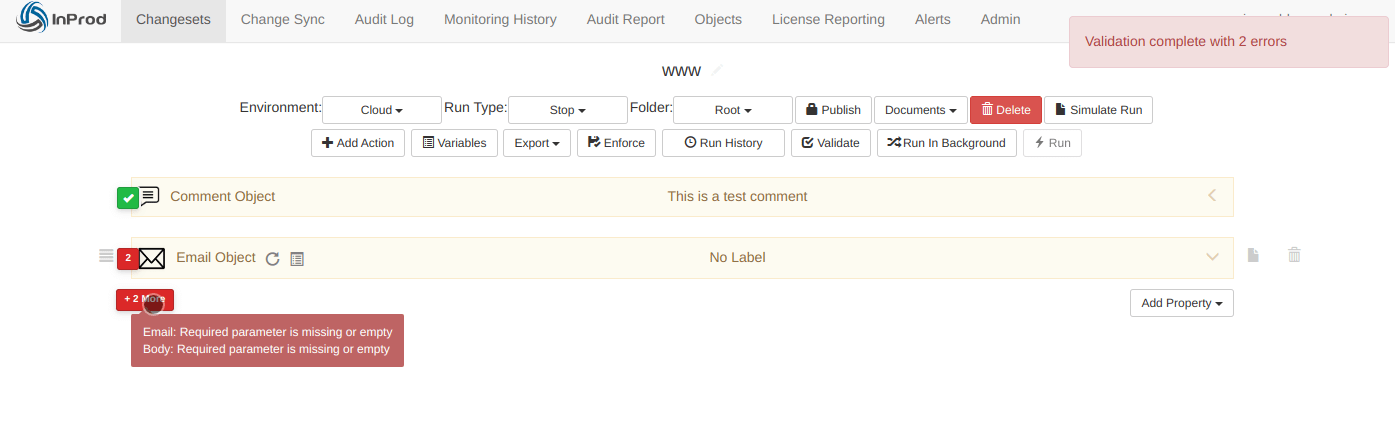
- Carefully read the errors and rectify them to successfully validate the action.
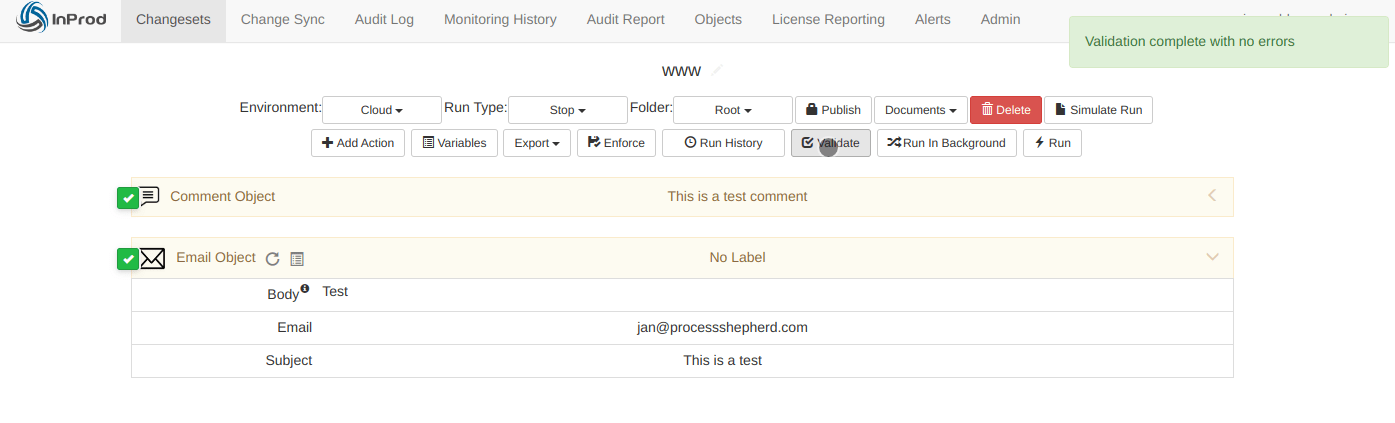
- If there are no errors, InProd successfully validates the action and displays the message for successful validation.
¶ Changeset Simulation
When developing a changeset it can be an advantage to see what actions will be performed, as one update action could cause many changes. The Simulate Run displays a simulated event list of all the changes that will result from the changeset.
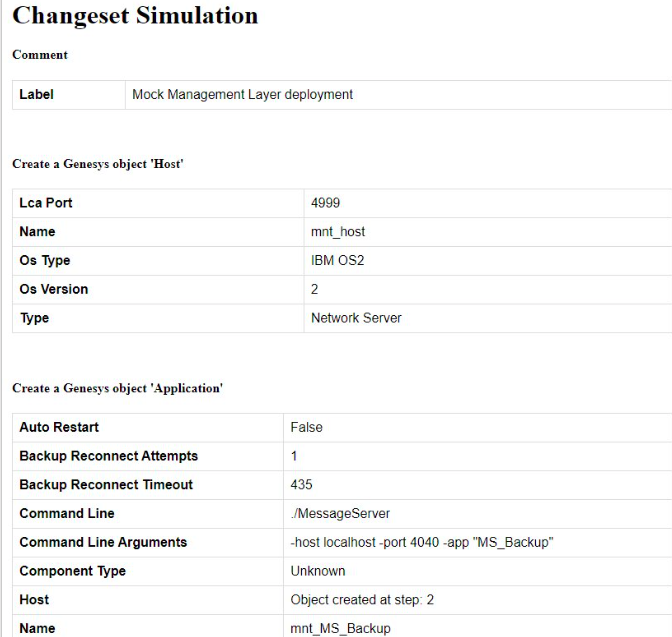
Simply reloading this page will generate new results. It is convenient to have two tabs open, one for the changeset and the other of the simulated run.
¶ Running a Changeset
After successfully validating the Changeset, you can run the Changeset on the selected target environment.
Note
The Run button will be disabled if the user does not have the
run_changesetpermission on the targeted environment.
To run the changeset
- On the toolbar, click Changesets to open the Changesets page.
- On the Changesets page, click the changeset name that you want to run.
- Click the Run Type drop-down list and select the type of run. It is used to determine what happens when there is a failure within an Action.
| Run Type | Description |
|---|---|
| Stop | Terminates the action |
| Revert | Terminates the action and reverts all changes |
| Continue | Ignores the error in an action then continues with the next action |
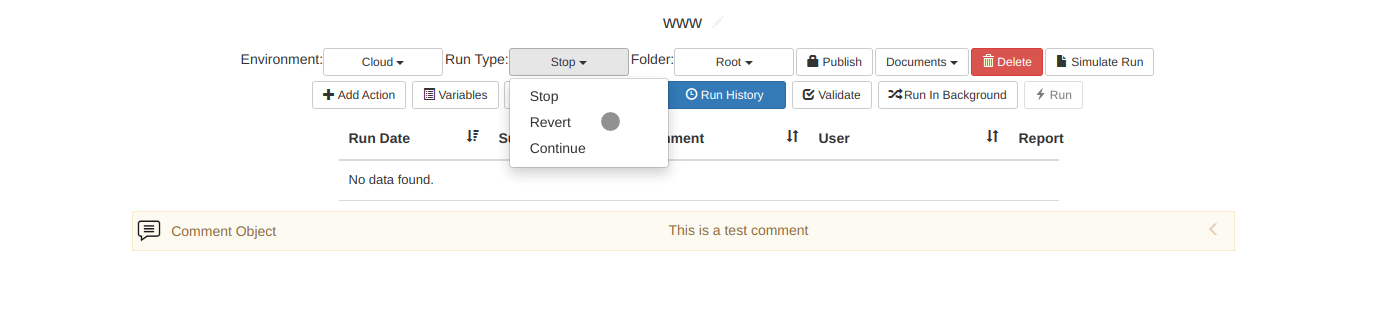
- Click the Run button.
¶ Publishing a Changeset
A Changeset can be marked as Published, which prevents any further changes to the changeset. The unpublish_changeset permission is required to convert a published Changeset back into an editable state.
An environment that has been configured as a Production environment will not permit a Changeset to be run unless it has been Published. The intention here is to enforce the change control process for production environments.
New Changesets start in an unpublished state. Once a Changeset is reviewed and ready for release, it can be Published to lock it against further edits and allow it to run against production environments.
If this behaviour is not desired, simply do not configure any of your environments as Production.
¶ Enforce Mode
When the Enforce mode is activated, the Changeset will operate in a declarative manner similar to CI tools, such as Puppet and Ansible.
For example consider there is a Create Application action within the Changeset, but the Application already exists as the Changeset was previously executed. Normally this would cause a validation error. Within Enforcing mode the existing object will be detected and the Create action will be converted into an Update action. Any changed parameters will then be updated to the new values.
Enforcing mode allows you to manage the lifecycle of Genesys features via the Changeset, long past the initial deployment. The same Changeset can be used to deploy a feature set within Development and Production environments and can also be used to maintain it. Upgrades and fixes can be added into the Changeset and executed again with minimal effort.
With the Enforce mode, it is important to review the change control documentation generated from the Changeset to confirm the actions that will be taken. This can also be achieved via the "Simulate Run" feature.
The Enforce mode should always be used when running Changesets from Puppet or Ansible.
¶ Viewing the Run History of a Changeset
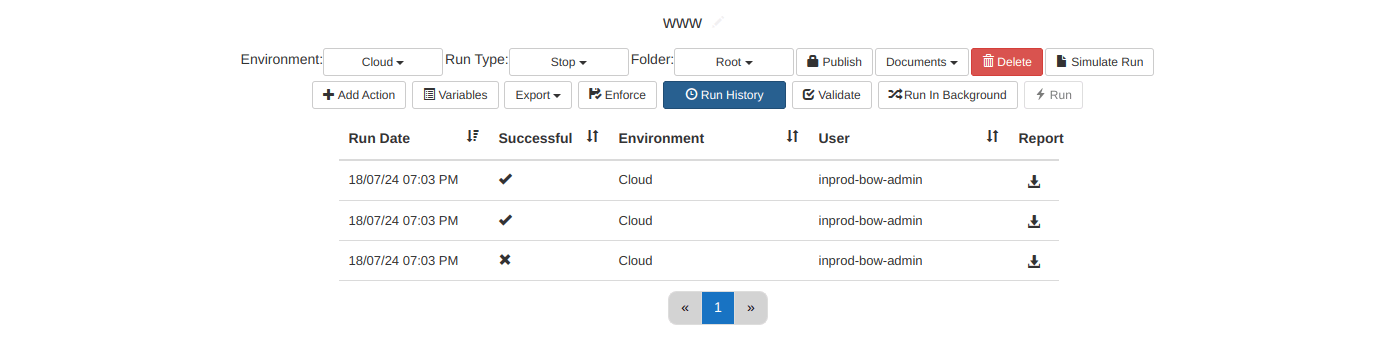
The Show Run History option displays the history of each attempt of running a Changeset. The history includes the date and time when the Changeset has run along with the environment, user, and the status of the run action. The status of the run action can be successful or failed.
You can also download the run history report using the Download action.
Click the Show Run History button to display the Run History panel with the history details.
¶ Folders
Changesets are allocated into folders for easy accessibility and long-term storage. The 'Root' folder is the system default when opening the Changesets page and when importing a Changeset from a file.
You need to open the Changeset in the Edit mode to move it between folders.